
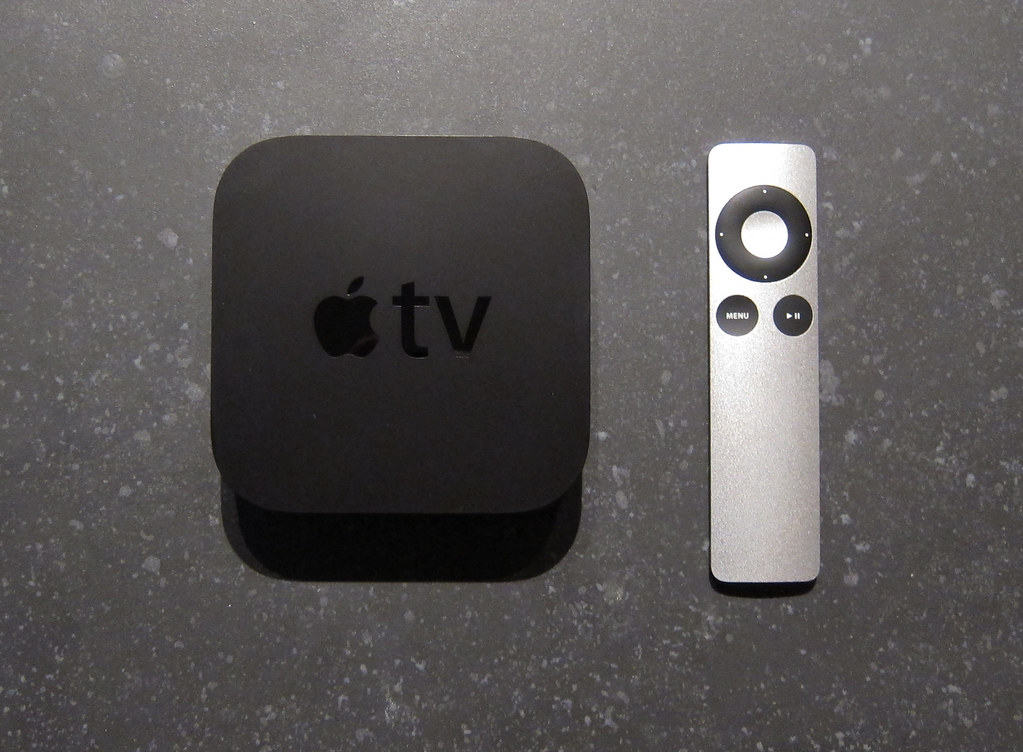
If you own an Apple TV in Malaysia and wish you could install and stream US-only apps like Max, Hulu, Peacock, or ESPN+, there’s a quirky workaround people use: turn your Mac into a mini “VPN router” for Apple TV with Internet Sharing. It kind of works… until it doesn’t. Below I’ll show the fragile hack (so you understand the mechanism), why it breaks, and then the reliable NordVPN setup that makes Apple TV streaming smooth and hands-off.
If you’ve made it here, you’re probably an Apple TV user in Malaysia (expats, sports fans, US content completionists) searching for fixes like “NordVPN Apple TV Malaysia,” “share VPN from Mac to Apple TV,” and “watch Max in Malaysia on Apple TV.”
What You’ll Get From This Guide
- US-only streaming apps installed and working on Apple TV in Malaysia.
- Mac Internet Sharing to “tunnel” Apple TV through your NordVPN connection.
- A bulletproof NordVPN setup that survives updates and doesn’t tank speeds.
Who This Is For (And Not For)
- For: Apple TV 4K owners in Malaysia who want US apps and stable playback on the big screen.
- Not for: People who only watch on phones/laptops (NordVPN apps alone already solve that).
- Note: Using a VPN may violate some services’ terms; act within your own risk tolerance.
Get US-only apps working tonight. Try NordVPN risk-free for 30 days and stack it with our exclusive discount.
The Trick (That Works Sometimes)
People do this to get Apple TV traffic to exit via the US:
- Connect your Mac to the internet as normal.
- Turn on your VPN on the Mac and connect to a US server.
- Use macOS Internet Sharing to share your Mac’s connection to another interface (often Wi-Fi or Ethernet) and join Apple TV to that shared network.
- On Apple TV, sign in with a US Apple ID to install US-only apps (Max, Hulu, Peacock, etc.).
Why this often breaks:
- macOS updates or sleep states disable Internet Sharing randomly.
- Some apps re-check IP at playback; if your sharing toggled off, streams error out.
- Double NAT and DNS quirks cause intermittent buffering and login loops.
- Any change to the Mac’s interface (switching Wi-Fi, captive portals, hotel/dorm networks) kills the setup mid-show.
The Reliable Setup: NordVPN + One of These Three Paths
Use whichever fits your gear. My ranked picks:
Option A (Easiest for Apple TV): NordVPN SmartDNS (US)
- What it is: NordVPN’s SmartDNS routes only the domain lookups needed for supported US streaming, so Apple TV behaves like it’s in the US without a full VPN app.
- Why it’s great: No extra hardware, no speed tax, works even when Apple TV doesn’t support VPN apps.
- Steps (quick):
- In your NordVPN account dashboard, enable SmartDNS for your home IP.
- On Apple TV: Settings > Network > Wi-Fi/Ethernet > Configure DNS > Manual. Enter the NordVPN SmartDNS addresses from your account page.
- Restart Apple TV, open US apps. If your ISP changes your IP periodically, re-activate SmartDNS in your NordVPN account.
- Best for: Stable home use, 4K playback, minimal tinkering.
Option B (Rock-Solid and Set-and-Forget): VPN Router in Front of Apple TV
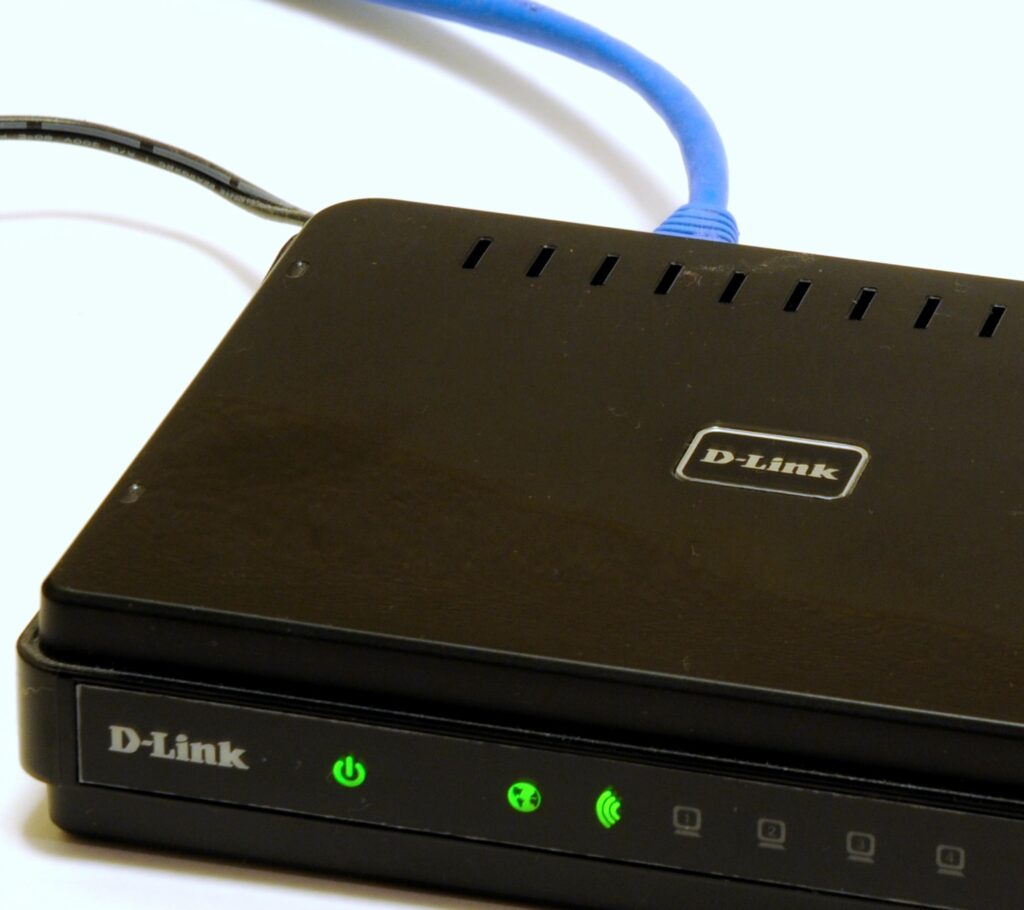
- What it is: Put a VPN-capable router (or a small travel router that supports WireGuard/OpenVPN) between your modem and Apple TV, then load your NordVPN credentials.
- Why it’s great: Every device behind the router gets US IP automatically, no Mac needed.
- Steps (high-level):
- Log into your router (or travel router), import NordVPN WireGuard/OpenVPN config, choose a US server.
- Reboot Apple TV (and optionally the router) so it grabs the new route.
- Best for: Homes with multiple screens, families, and anyone who never wants to debug again.
Option C (You Already Have a Mac Nearby): Mac Internet Sharing Done Right
- What it is: The same quirky trick, but hardened.
- Steps (tight):
- Prefer Ethernet from Mac to Apple TV (via USB-C–to-Ethernet or a simple switch); Wi-Fi-to-Wi-Fi is where most flakiness lives.
- On Mac: connect NordVPN to a US server; then System Settings > Sharing > Internet Sharing. Share “from” the interface that carries the VPN (test both Wi-Fi and Ethernet if unsure) “to” the port feeding Apple TV.
- Assign Apple TV a DHCP reservation on your router so its IP doesn’t move. Keep the Mac awake (no sleep) while TV is in use.
- Best for: Temporary setups, travel, hotels, or when you can’t touch the main router.
Buffer-free Apple TV streaming starts with NordVPN. Claim our exclusive deal—backed by a 30-day money-back guarantee.
Apple TV Prerequisites Most Guides Forget
- US Apple ID: You’ll need a US Apple ID to install US-only apps. Sign out of your Malaysia ID in the App Store on Apple TV, sign in with the US one, install the apps, then you can switch back if you prefer. Free to create.
- Region settings: On Apple TV, set Region to United States for clean app discovery and rating systems.
- Payment method: Some apps are free to install; paid subscriptions can be purchased on their sites, then you just sign in on Apple TV.
- Clean DNS: If you used any custom DNS previously, revert to Automatic unless you’re using SmartDNS (Option A).
Troubleshooting Checklist (Keep This Handy)
- App opens but won’t play: Confirm your Apple TV’s outbound IP is US (search “what is my IP” in the Apple TV browser app or check via a network tool on your phone while connected to the same SSID).
- Works on home Wi-Fi but not on guest/hotel: Many guest networks use isolation or captive portals. Use Option C (Mac sharing) or a travel router so Apple TV bypasses the captive portal after you sign in once on your laptop.
- Random buffering: If you’re using Option B, switch NordVPN servers within the same US region; if Option A, briefly toggle SmartDNS off/on in your account to refresh.
- App still geoblocks: Clear app cache (delete/reinstall), reboot Apple TV, then reconnect VPN/SmartDNS and try again.
Why NordVPN Specifically (Apple TV Use Case)
- Fast US servers with broad city choices to reduce congestion at peak hours.
- SmartDNS designed for devices without VPN apps (like Apple TV).
- WireGuard-based protocol (NordLynx) for top speeds if you go the router route.
- 30-day money-back guarantee, so you can test all three options risk-free.
Quick Start: Pick Your Path and Go
- Fastest to try now: Option A SmartDNS. It’s a 5-minute change and usually enough for major US apps.
- Most reliable long-term: Option B VPN router. One and done; everything just works.
- Most flexible on the road: Option C Mac sharing. Perfect for hotels and short stays.
Unlock US streaming apps on Apple TV tonight with NordVPN—grab our exclusive discount and try it completely risk-free with the 30-day money-back guarantee.
FAQ (Apple TV Malaysia + NordVPN)
Does this slow down Apple TV?
- SmartDNS (Option A) generally doesn’t; full VPN (Option B/C) can add a small overhead. With NordVPN’s faster protocols, 4K is typically fine on Malaysian fiber.
Which US city should I pick?
- Start with Los Angeles, San Francisco, Seattle, or Dallas. If you see evening congestion, hop to a nearby city.
Will this affect local Malaysian apps on Apple TV?
- If you want local apps to stay local, put the Apple TV on a separate SSID behind the VPN router, or use SmartDNS only on Apple TV while keeping your other devices on the regular network.
Is this legal?
- Using a VPN is legal in Malaysia. Some streaming platforms restrict VPN usage in their terms; decide your own risk tolerance.
Set up Apple TV the right way with NordVPN—our exclusive discount is live now, and you’re covered by a 30-day money-back guarantee.
Other Helpful Links
NordVPN SmartDNS setup for Apple TV → https://nordvpn.com/tutorials/smartdns/
NordVPN router configuration (OpenVPN/WireGuard) → https://nordvpn.com/tutorials/router/
Apple: Change your Apple ID country or region (for US App Store) → https://support.apple.com/en-us/HT201389
